Your first session
Installed and logged in? Good. This is a low-stakes walkthrough of how a session actually feels — open a practice session and follow along. When you've got the rhythm, run the pre-flight check before anything real.
The interface
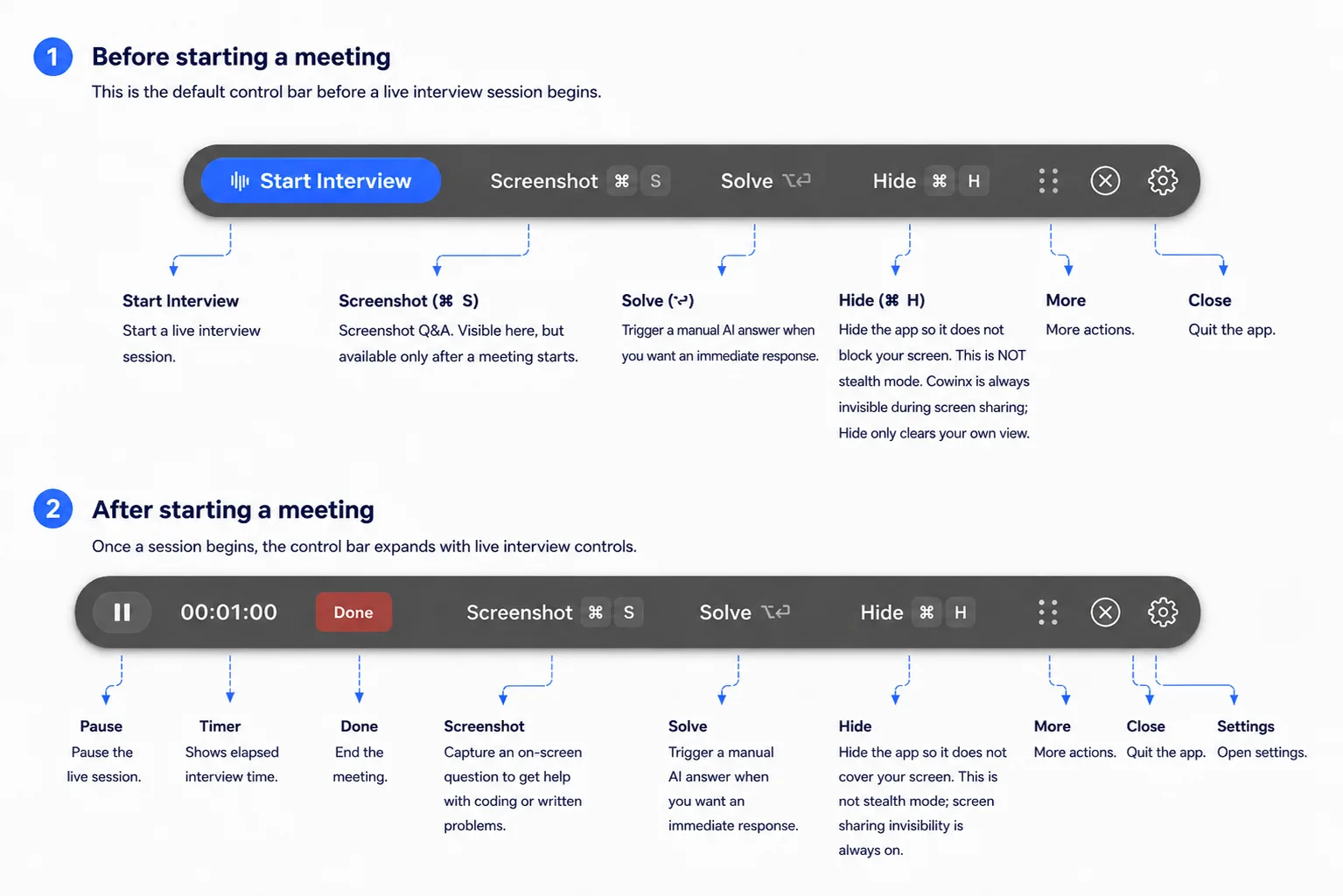
Cowinx has just two surfaces: a floating control barthat's always there, and a workspace that appears only during a live session.
Control bar
Floats above every window and reshapes when a session is active. Hide or show it with ⌥H, and reposition it with ⌘⇧ + arrow keys.
Workspace
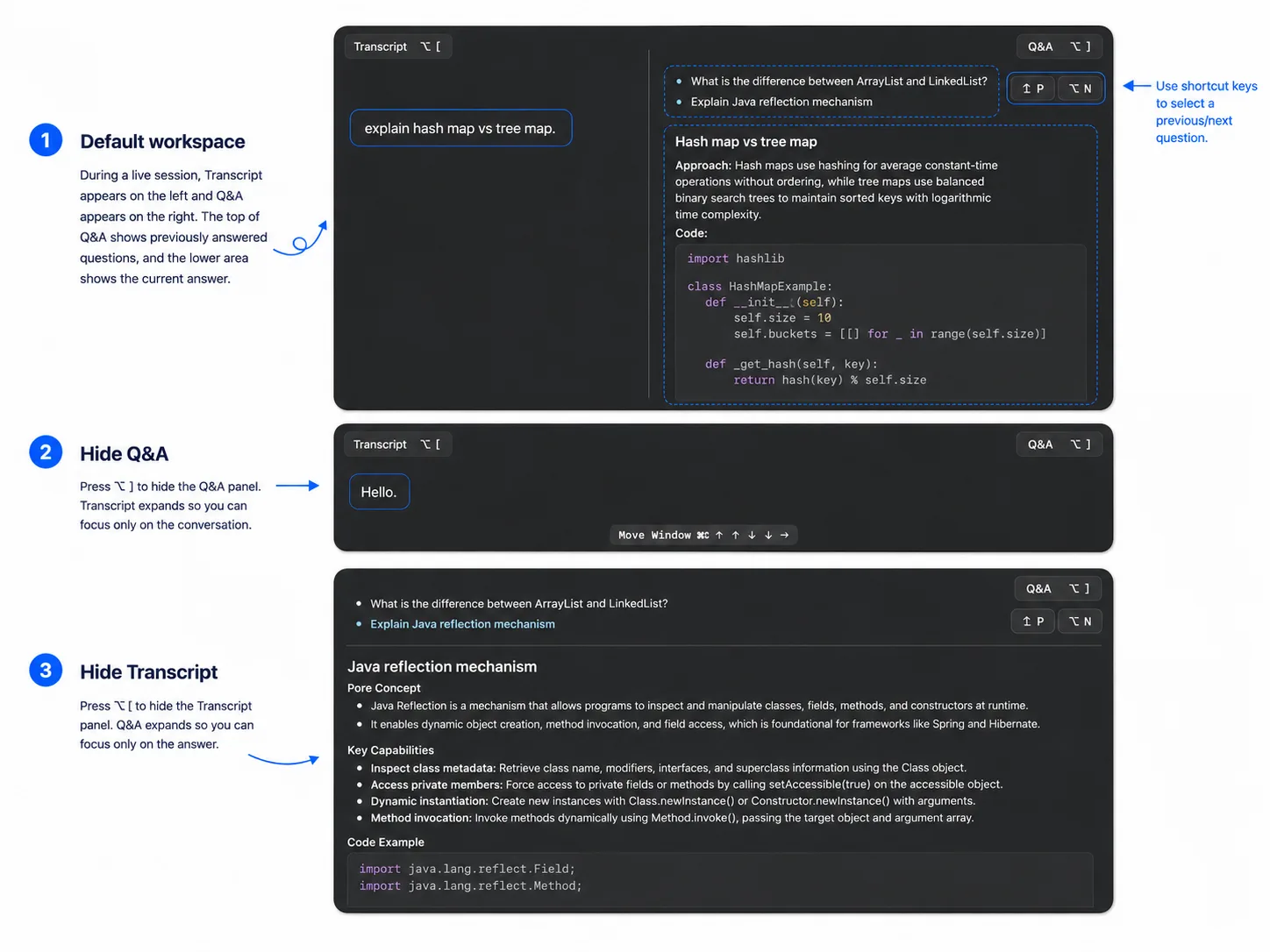
Opens below the control bar during a live session, with two panels — Transcript and Q&A. Toggle each with ⌥[ and ⌥]; at least one stays visible.
Requesting Q&A notes
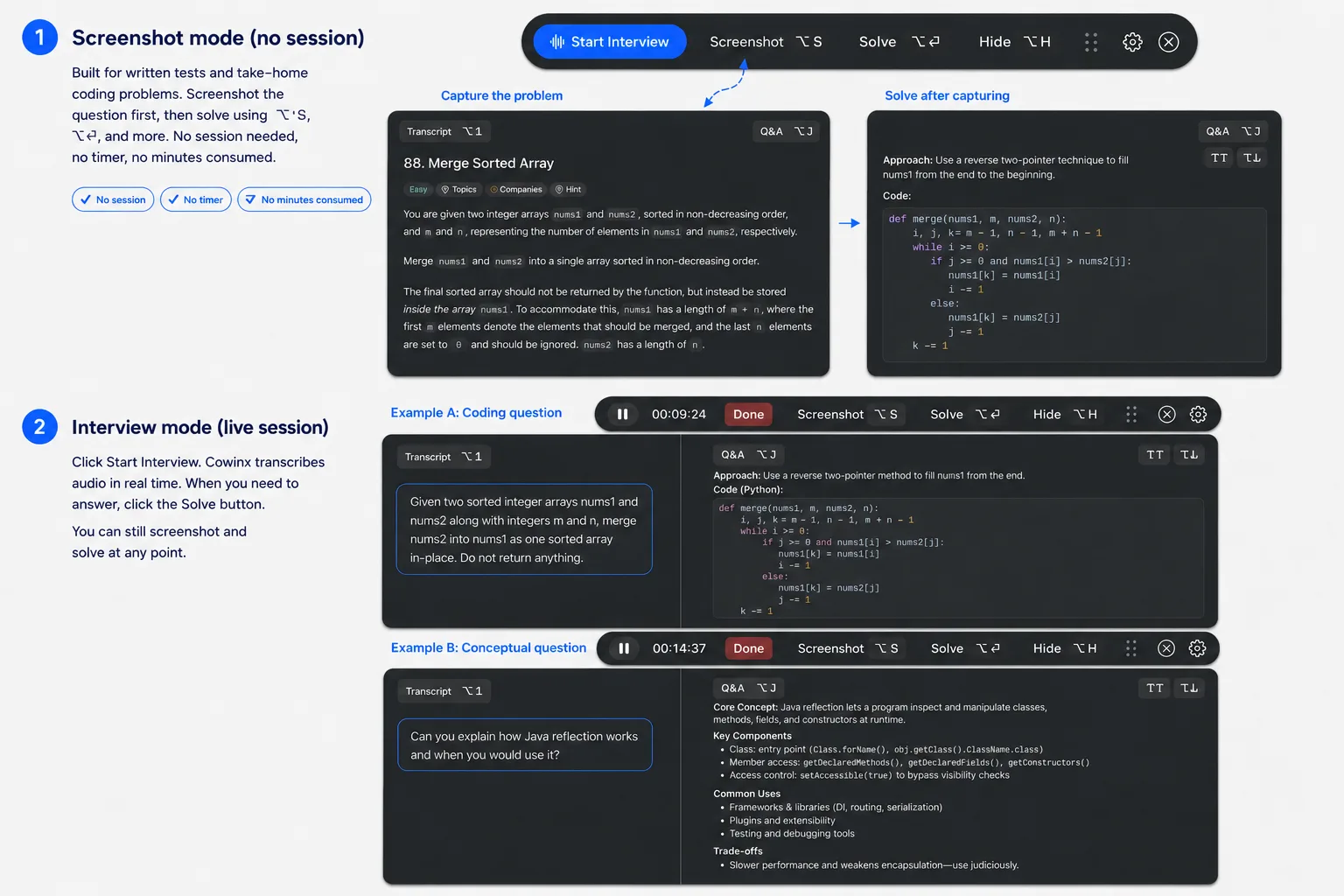
Cowinx transcribes audio live, but it never writes Q&A notes on its own — you request them by clicking Solve or pressing ⌥⏎. That is deliberate: nothing happens until you ask, so the workspace never races ahead of the conversation. There are two ways to ask.
From the transcript
During a practice or permitted session, press ⌥⏎to request notes for the latest prompt from the transcript. Cowinx won't auto-solve as the conversation moves on — the latest prompt is always yours to send.
From a screenshot
For anything visual — practice prompts, coding docs, or system-design notes on a screen share — press ⌥S to capture (repeat to queue several), then ⌥⏎ to request notes for the batch. Screenshots work with or without a session; on their own they use no session time.
Before a permitted interview
Once the rhythm feels natural, run the pre-flight check — five minutes that confirm your screen-share view, that Cowinx can capture meeting audio, and that your language and hotkeys are set. For every shortcut and setting, see Hotkeys & settings.