Get Cowinx running in 5 minutes
Three steps from a fresh download to your first practice Q&A note. If you hit a snag, jump to Troubleshooting.
Requirements
macOS 14.4 or later.It's required for Cowinx's current audio, screen-analysis, and private workspace behavior. Earlier versions aren't supported.
1
Install the app
Cowinx is distributed directly from us right now, so first launch needs one extra approval in System Settings. Only install Cowinx from the official download link on this site.
- 1Open the
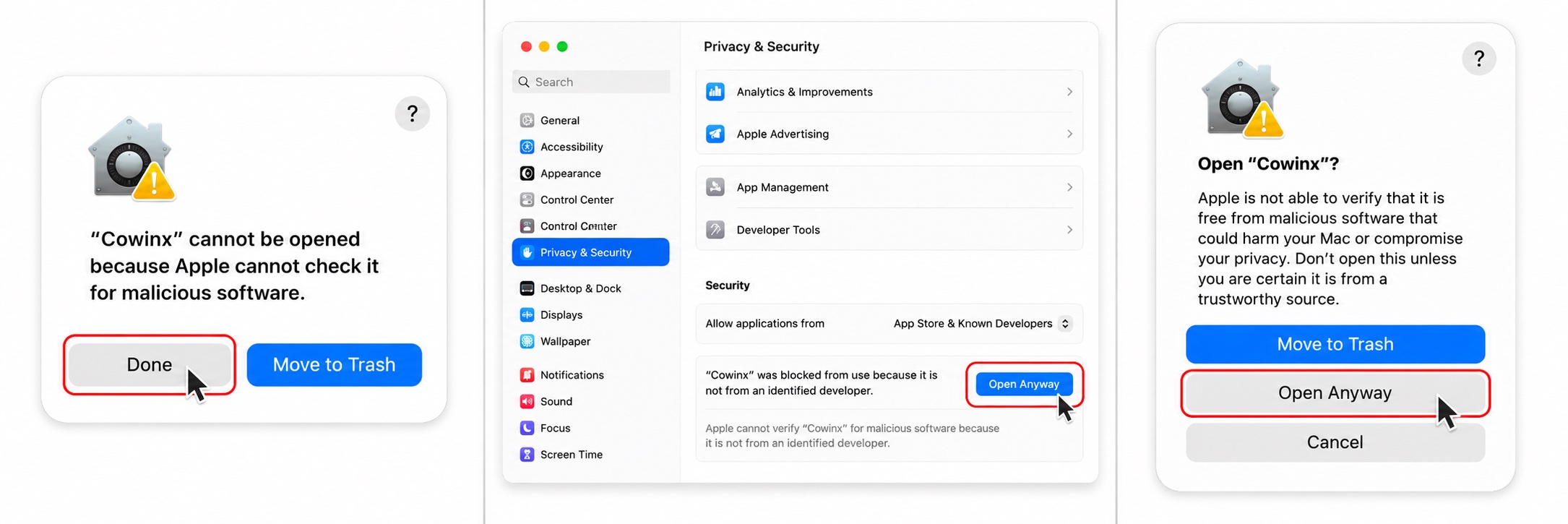
.dmgand drag Cowinx.app into Applications. - 2Double-click Cowinx. macOS blocks the launch — click Done.
- 3Open System Settings → Privacy & Security, scroll to the bottom, and click Open Anyway next to the Cowinx warning.
- 4Enter your password, then click Open.
Note
Open Anywayonly appears after step 2 fails, and it lives at the very bottom of Privacy & Security.
2
Grant 3 permissions
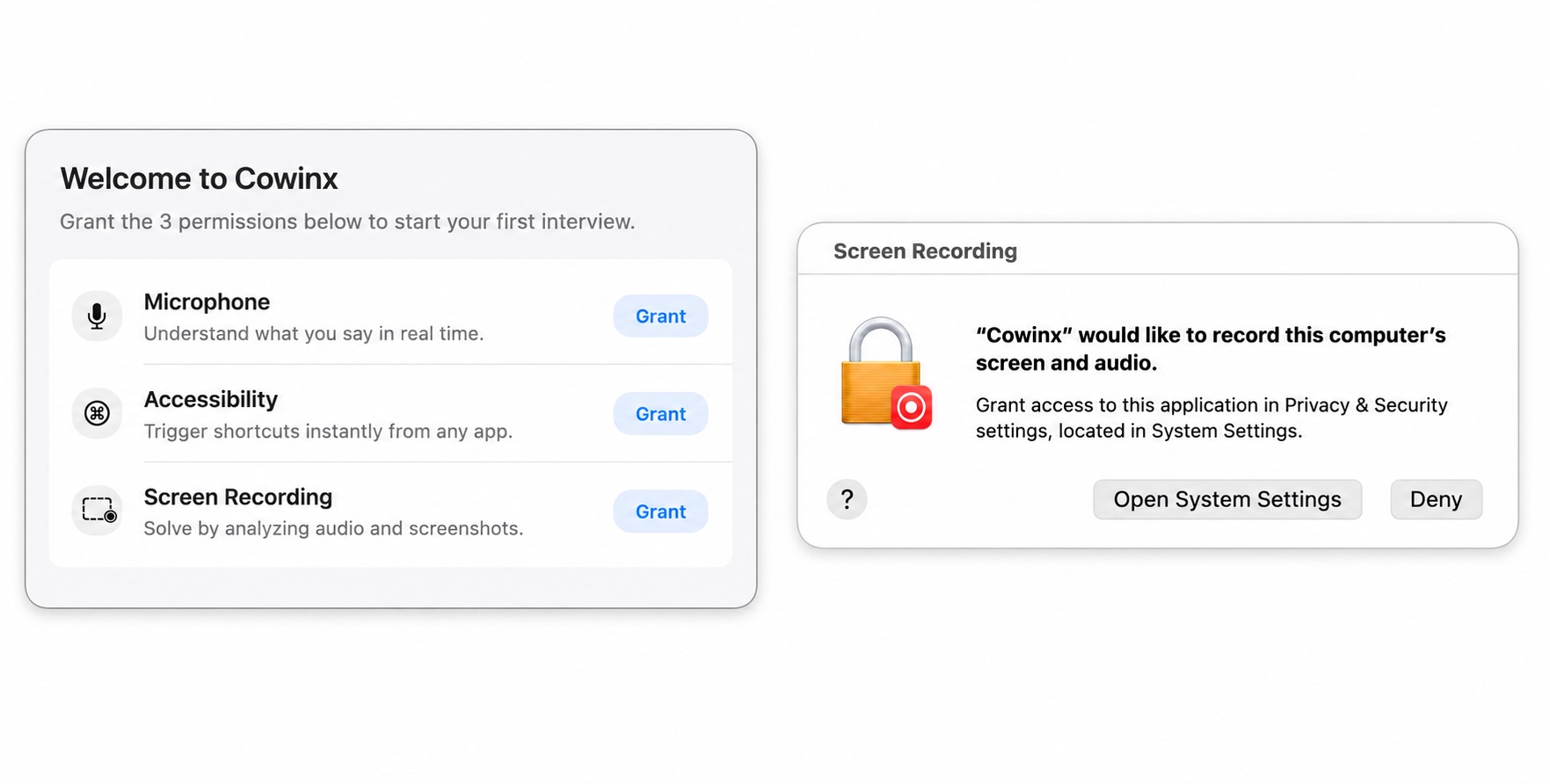
Cowinx needs three macOS permissions, each granted in System Settings → Privacy & Security: Microphone, Accessibility, and Screen Recording. After granting Screen Recording, quit and relaunch Cowinx.
Important
All three are required. Cowinx will not function correctly until every permission is granted.
3
Run your first session
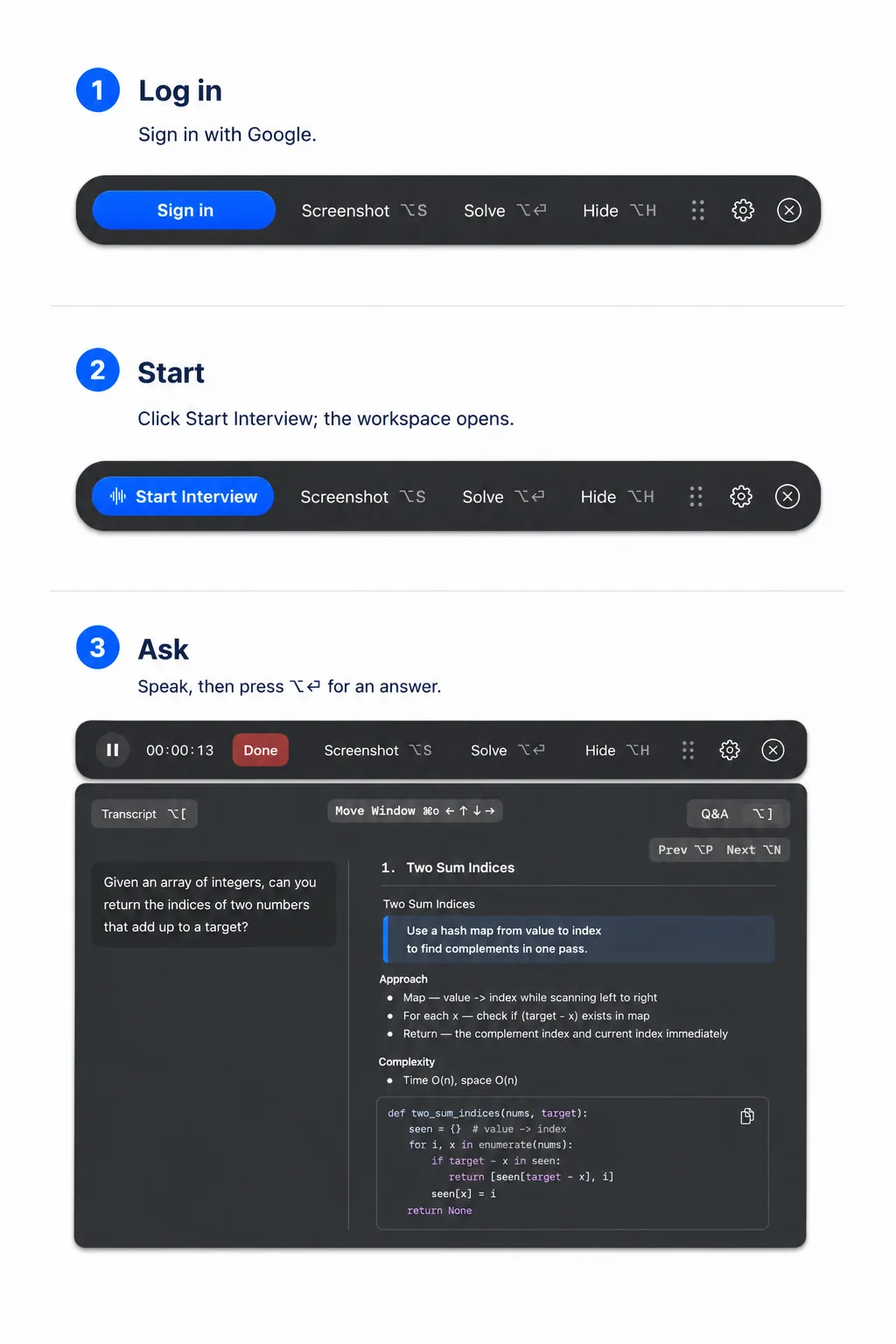
- 1Log in with Google on the control bar.
- 2Click Start Interview to open the practice workspace.
- 3Speak, then press ⌥⏎ (or click Solve) to request notes for the latest prompt.
That's it — you're set up.
Next, learn the rhythm of a session in Your first session.